Documentation Index
Fetch the complete documentation index at: https://trunk-4cab4936-sam-gutentag-changelog-flaky-tests-stable-br.mintlify.app/llms.txt
Use this file to discover all available pages before exploring further.
Organization Slug and Token
Integrating with Trunk through Webhooks, APIs, or CLI will require authentication using your organization’s slug and token. You can find your organization slug and token by going to Settings > Organization > General.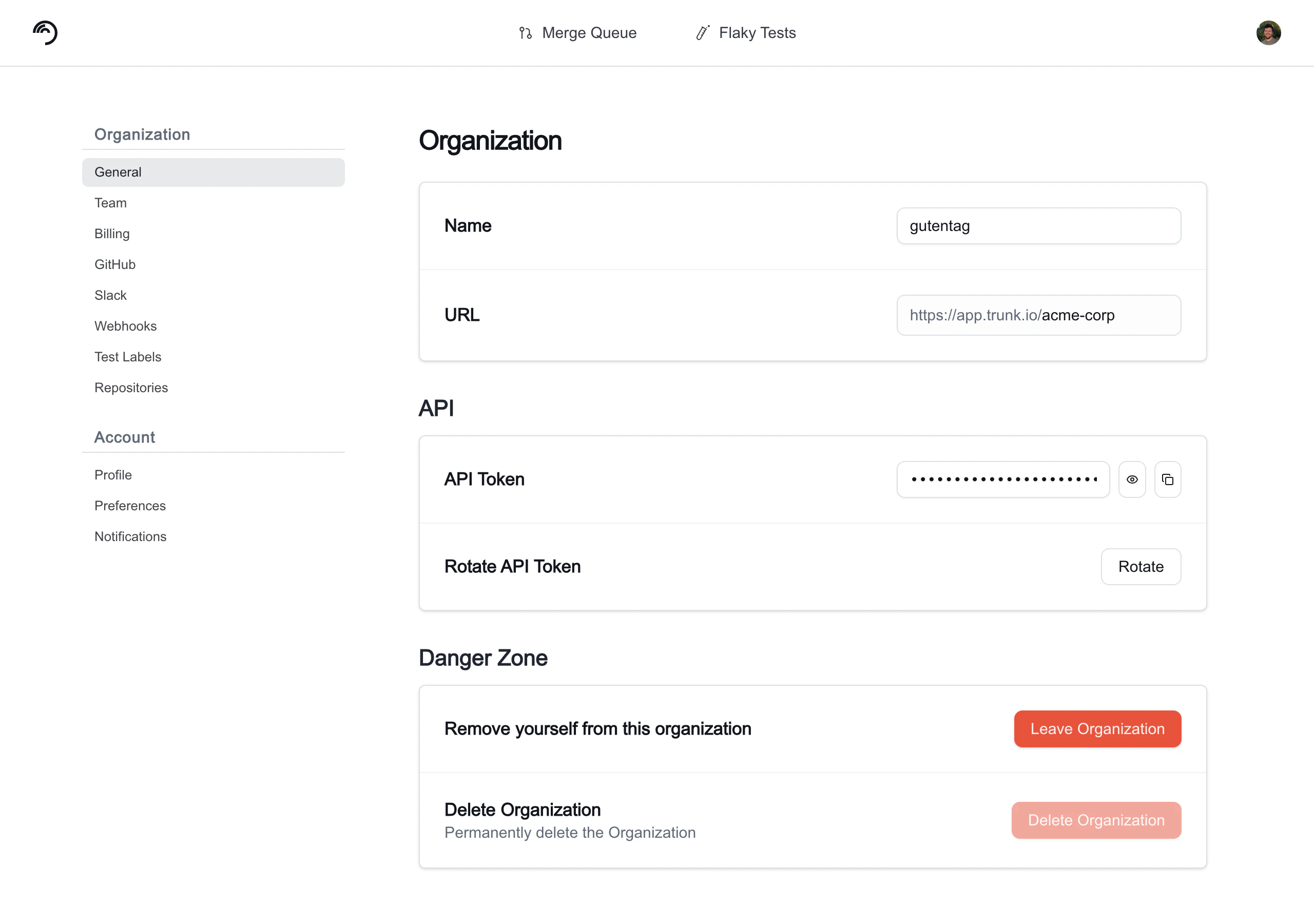
Managing Team Members
You can manage a team member’s role and remove team members by navigating to Settings > Organization > Team > Members and clicking on the name of a team member. You can change the role of a team member between member and admin, as well as remove the user from your organization.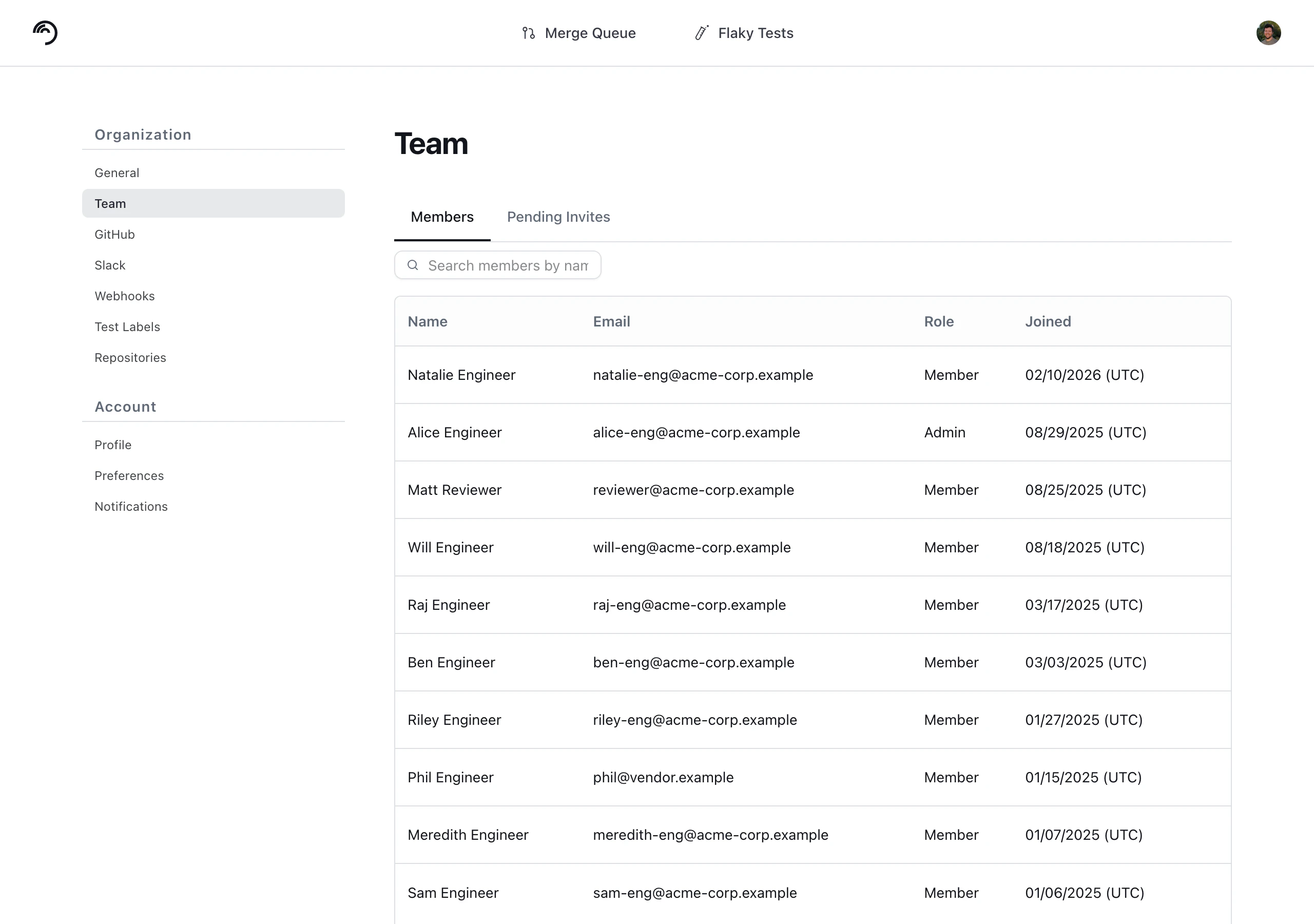
Inviting Team Members
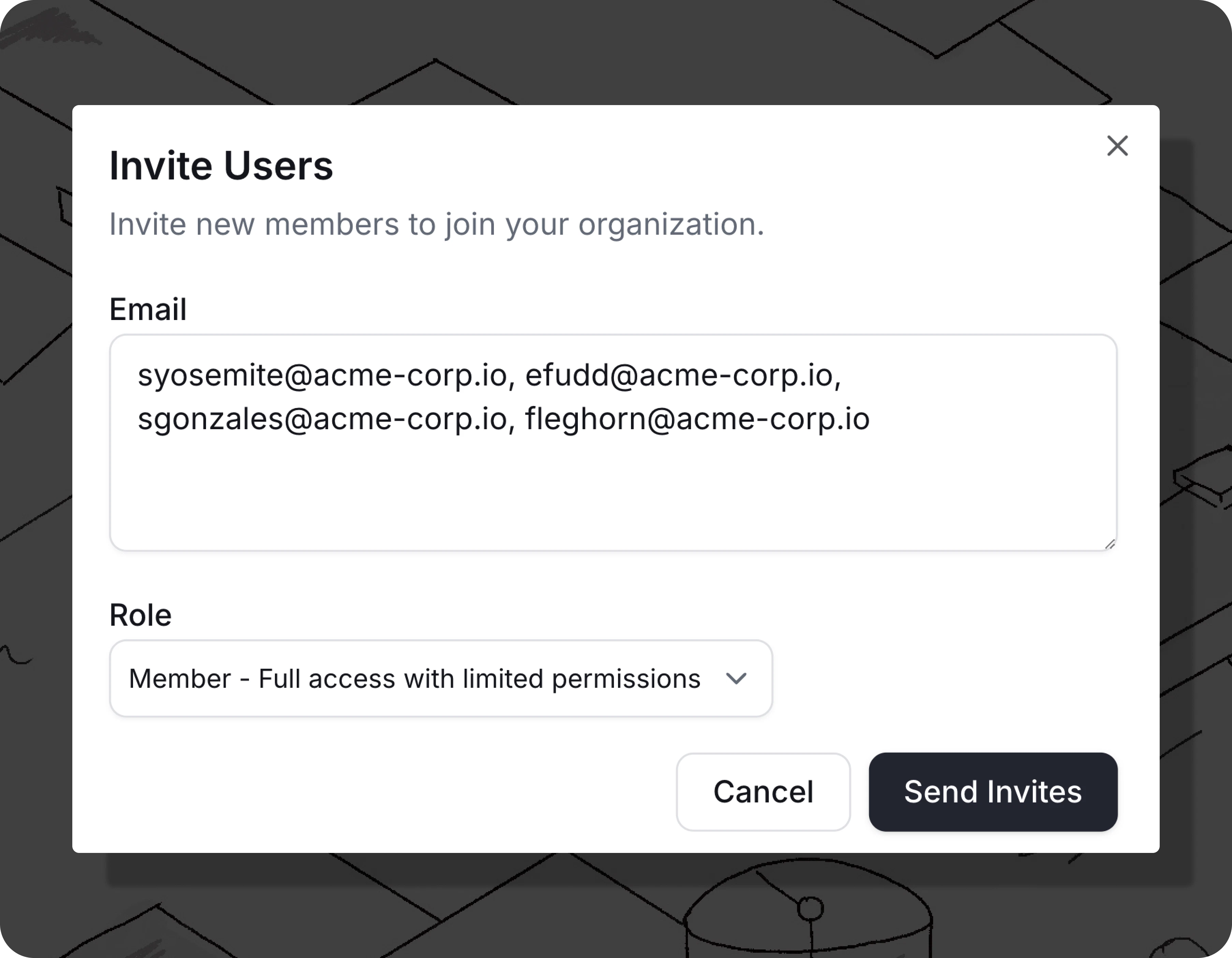
You can invite individual members manually by navigating to Settings > Organization > Team > Members and clicking the Invite Users button. An email will be sent to the invitee’s inbox. In the form, add comma separated email addresses and select a Role from the drop down. This role will be applied to all users in this invite batch. Available Roles are:- Member: Full access with limited permissions (default)
- Admin: Full administrative access
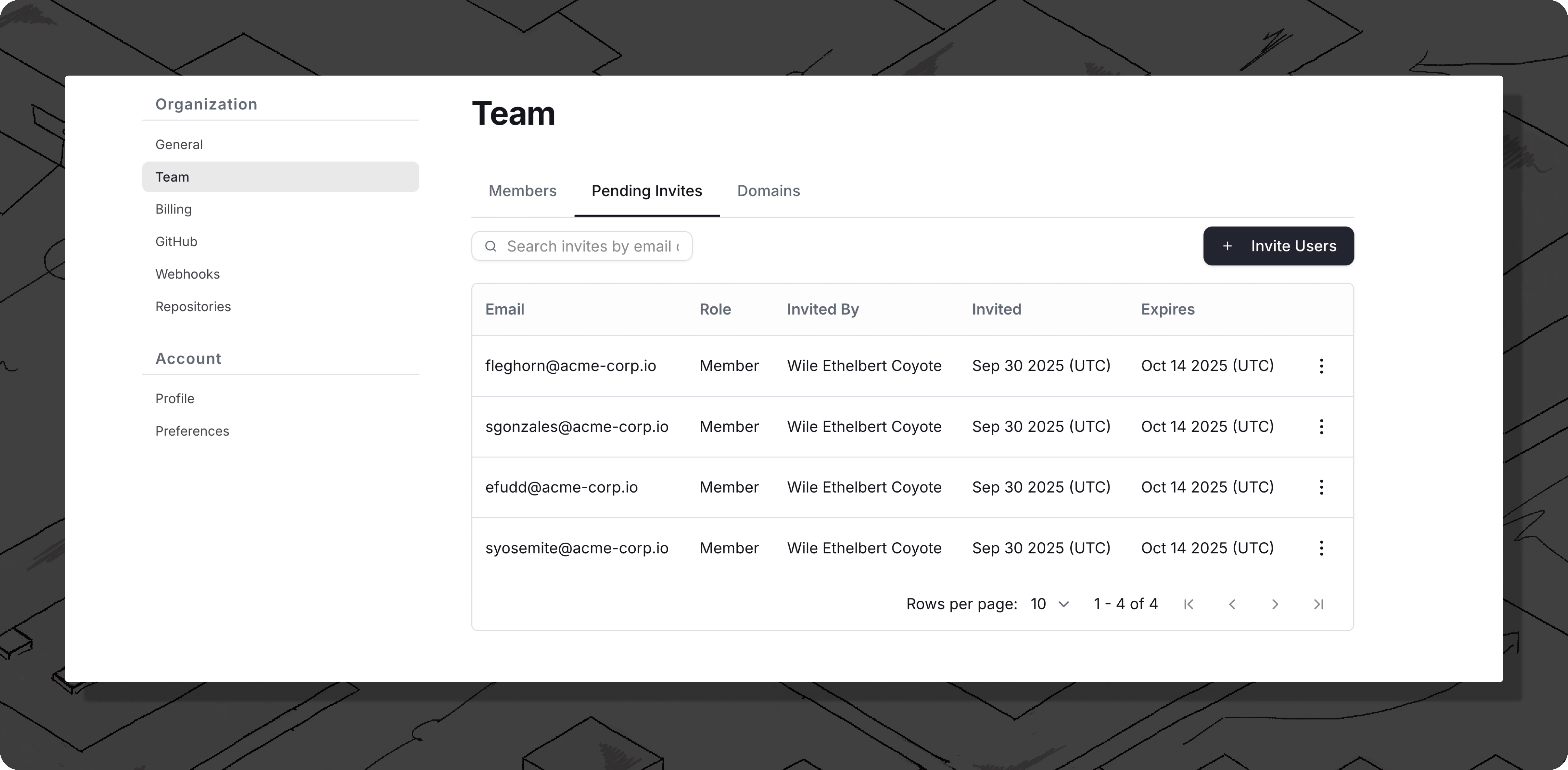
Pending Invites
You can view and manage pending email invites by navigating to Settings > Organization > Team > Pending Invites. From this page you can copy the member invite link or revoke the invite using the three dots menu.